

Up and running in 7 steps.
Install the extension, connect TradingView and start routing alerts to your exchanges. Tick off each step as you go.
- 1
- 2Step 2
Pin it to your toolbar
Click on the
Extensionsicon on the right side of your browser's address bar and select Pin next to ProfitView.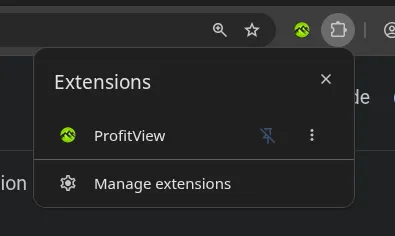
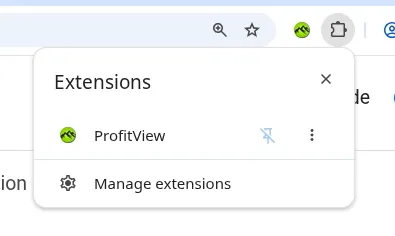
1Open Extensions2Click the pin - 3Step 3
Open the options
You'll have a new tray icon in your browser (the green ProfitView logo) which opens a popup window that shows the last used accounts and gives an overview of the state of operations. Click on the
Optionsbutton to continue setting up ProfitView.Note: If you have problems with the TradingView connection at this point it is best to log out of TV, clear the browser cache, restart the browser and log into TV again! - 4Step 4
Connect your alerts
Set up your indicators and alerts on TradingView and map them to syntax scripts (PV Alerts) in ProfitView.
- 5Step 5
Activate PRO
Buy either a lifetime license or monthly subscription to activate ProfitView PRO.
- 6Step 6
Keep one tab open
Make sure that there is always at least one tab open in your browser so that ProfitView can stay running (e.g.
about:blank, Google or TradingView). - 7Step 7
Tune your browser
For optimal performance add these flags to your browser shortcut:
--disable-features=ExtensionsMenuAccessControl --disable-background-timer-throttling - +Optional
Auto-restart on crash
Install a tool like Restart on Crash to make sure your browser is automatically restarted in the event it crashes for some reason.