

Install a pinned version, by hand.
Use this if you do not want ProfitView to update automatically, or want to run a specific version.
- 1Step 1
Download a release
For a fully manual installation (no automatic updates!) download the current version as a ZIP file:
Version Released Download 1.3.109LatestMV3 19 Nov 2026 ProfitView-1.3.109.zip 1.3.107MV3 14 May 2026 ProfitView-1.3.107.zip 1.3.106MV3 19 Apr 2026 ProfitView-1.3.106.zip - 2Step 2
Extract the ZIP
Extract the ZIP file to a folder of your choosing (where it will then reside).
Note: If you are updating an existing manual install, make sure to overwrite all files when extracting the ZIP archive and restart ProfitView or better the browser itself afterwards! (After an update you can skip the other steps below.) - 3Step 3
Load the unpacked extension
Go to Settings / Extensions and enable
Developer mode, then click theLoad unpackedbutton and select the folder where you unpacked the ZIP file to.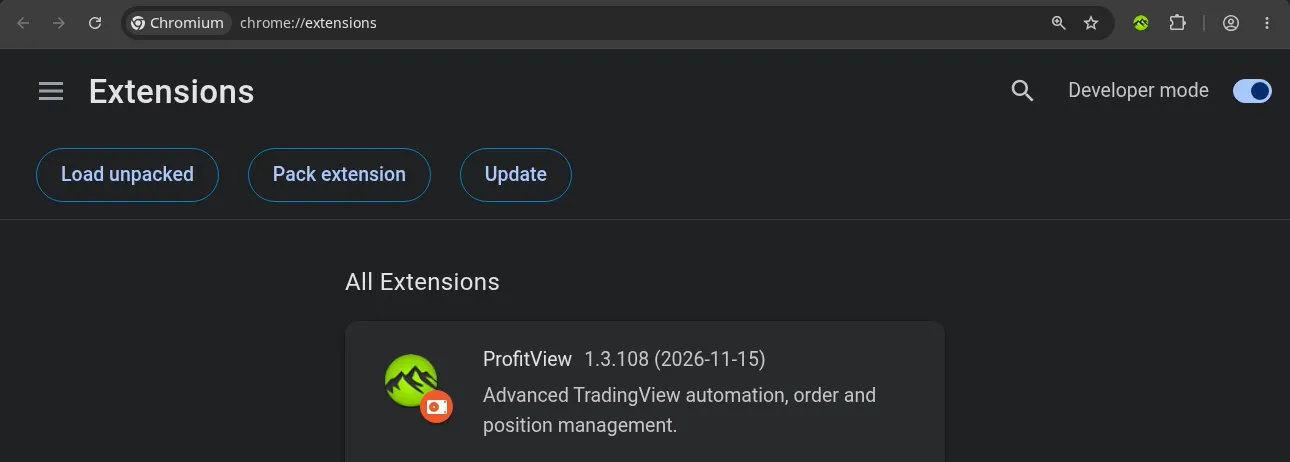
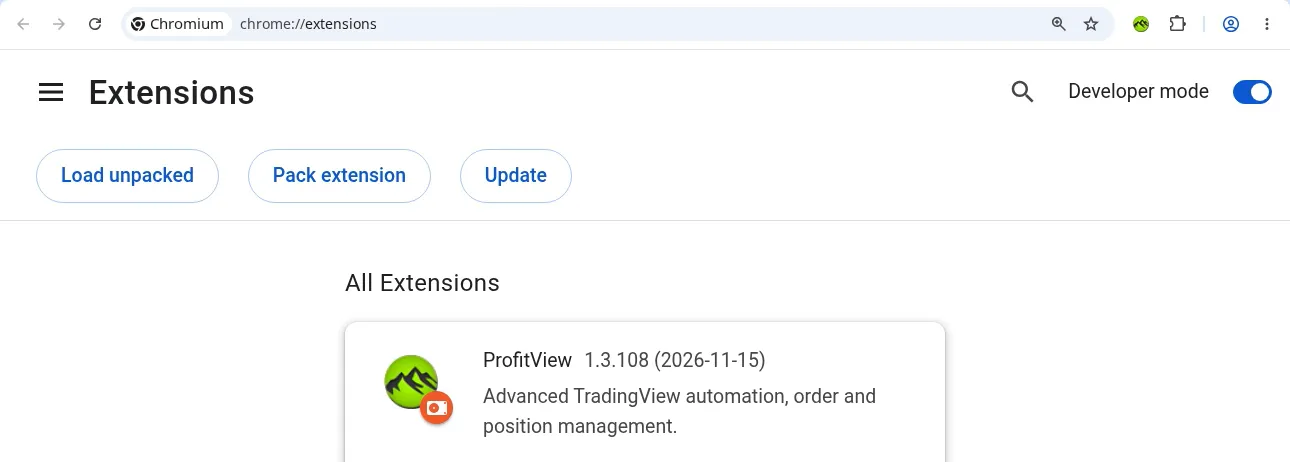
1Turn on Developer mode2Click Load unpacked - +Optional
Hide the developer mode warning
If you want to get rid of the developer mode warning popup on every browser restart you can use the Chrome-Developer-Mode-Extension-Warning-Patcher to disable it.
- 4Step 4
Pin it to your toolbar
Click on the
Extensionsicon on the right side of your browser's address bar and select Pin next to ProfitView.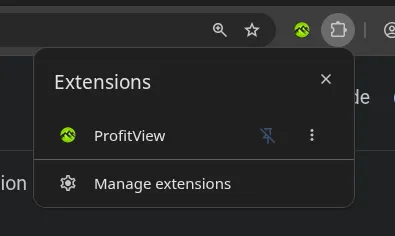
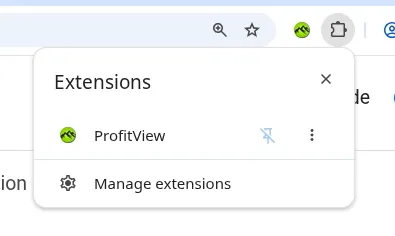
1Open Extensions2Click the pin - 5Step 5
Open the options
You'll have a new tray icon in your browser (the green ProfitView logo) which opens a popup window that shows the last used accounts and gives an overview of the state of operations. Click on the
Optionsbutton to continue setting up ProfitView.Note: If you are switching from the official Chrome Web Store version to manual install or have problems with the TradingView connection at this point it is best to log out of TV, clear the browser cache, restart the browser and log into TV again! - 6Step 6
Connect your alerts
Set up your indicators and alerts on TradingView and map them to syntax scripts (PV Alerts) in ProfitView.
- 7Step 7
Activate PRO
Buy either a lifetime license or monthly subscription to activate ProfitView PRO.
- 8Step 8
Keep one tab open
Make sure that there is always at least one tab open in your browser so that ProfitView can stay running (e.g.
about:blank, Google or TradingView). - 9Step 9
Tune your browser
For optimal performance add these flags to your browser shortcut:
--disable-features=ExtensionsMenuAccessControl --disable-background-timer-throttling - +Optional
Auto-restart on crash
Install a tool like Restart on Crash to make sure your browser is automatically restarted in the event it crashes for some reason.